vRealize Log Insight Webshims

Now don’t worry, I’m not about to start blogging every week, I’ve just got some free time at the moment.

Earlier in the summer I was asked how difficult would it be to take a unknown stream of data and make some Log Insight events from that data and how long would it take. That’s pretty hard to quantity given the ‘unknown stream’, but sending data into Log Insight isn’t particularly difficult via the REST API, if you know what you’re doing. The conversation went quiet until much later when I was asked again. This typically means someones doing something interesting but again there was no information about the incoming data stream (and it’s probably an odd use-case to send non logs to a syslog server), but it intrigued me. This is also a great opportunity to revisit my blog on webshims because any solution will involve a box sitting in the middle taking the incoming stream and formatting it into a REST API call to vRealize Log Insight.

Drafting a solution

Because I’ve no idea of the incoming data stream I started in the middle: standing up a webshim and then making a module that sends information into vRealize Log Insight.

Grabbing my old notes, I opened up a Linux server and grabbed the webhooks code from the VMware GitHub repository using the ‘manual’ steps with an additional step. To be clear, this is to quickly build a Flask webserver that I can use as a starting point. The steps used are:

  1. virtualenv loginsightwebhookdemo
  2. cd loginsightwebhookdemo
  3. source bin/activate
  4. git clone https://github.com/vmw-loginsight/webhook-shims.git
  5. cd webhook-shims/
  6. pip install -r requirements.txt
  7. pip install markdown

At this point I can run the standard VMware webserver

python3 run-server.py 5001

Writing the vRealize Log Insight Event Shim

Before I get into this, lets all remember that I’m not a programmer and I don’t know Python particularly well either. I’m sure there’s better ways to do this, or I’m breaking some rule somewhere.

The first job is to create a source file for the vRealize Log Insight shim, starting with various functions and libraries that will be need:

from loginsightwebhookdemo import app, callapi
from flash import json
import time
from datetime import datetime

From the original __init__.py file I want to use app and callapi, otherwise the rest of the file isn’t required for this. Log Insight is expecting JSON formatted events with the appropriate time, specified in epoch time.

Next I tend to have the Variables and Constants. This is where I place all the hard coded bits and bobs or adjustable code so I can manipulate the script without re-writing stuff.

# Variables
VRLI_URL = "https://<FQDN_VRLI>"
VRLI_API_EVENTS_UUID = "111-MY-TEST-VM"
# Constants
VRLI_API_URL = ":9543/api/v1"
VRLI_API_EVENTS_URL = "/events/ingest/"
VRLI_HEADER = {"Content-Type": "application/json"}

This is fairly explanatory apart from the ‘UUID’. When sending an event via the REST API to Log Insight the URL must end in a UUID. This UUID must be unique, but it appears to be free text. I make the UUID up and the messages arrive. In any environment this will probably need to change, so I have a variable and give it a random string. This is not the ‘source’ magic field, in fact, I’ve not seen where this UUID is surfaced in the Log Insight UI.

Now it’s time to define the main core of the webshim. This will be the entry point and it will accept a block of text and format it for ingestion by Log Insight.

@app.route("/vrli_event/<EVENT_INPUT>", methods=['POST'])
def vrli_event(EVENT_INPUT=None):
  eventDetails = {}
  buildCustomDict(eventDetails, EVENT_INPUT)
  VRLI_FULL_URL = buildVRLIURL()
  MESSAGEDATA = {
      "events":[{
        "text": eventDetails['eventMessage'],
        "timestamp": eventDetails['eventTime']
      }]
  }
  return callapi(VRLI_FULL_URL, 'post', json.dumps(MESSAGEDATA), VRLI_HEADER, None, False)

The function is called with a passed block of text, which I reference with <EVENT_INPUT>. I then create a python list ( eventDetails = {} ) which I will use to store the data that I want to send to Log Insight. The next line ( buildCustomDict() ) is passed the newly created list object and the message block. The list is then updated with the text block, and the epoch time. We will look at this function shortly.

NOTE: I chose to do it this way to make it easier to adjust the code in the future. On longer code, I often track a number of internal variables with a list which enables me to keep things organised before I output to a log file.

I then build the full REST API URL ( VRLI_FULL_URL = buildVRLIURL() ) before building the correct JSON structure for the message block. Then I use the callapi function to post the event to Log Insight.

Fairly straight forward.

I then need to flesh out two additional functions:

  1. buildCustomDict()
  2. buildVRLIURL()

buildCustomDict(responseDict, dictInput=”ERROR – No Event Passed”)

Builds the structure of the passed list, known as responseDict and records the passed message block, with an error message if nothing is passed.

  humantime = datetime.today()
  epoch, spare = (str(time.mktime(humantime.timetuple()))).split(".")
  responseDict.update({
    "eventMessage": dictInput,
    "eventTime": epoch,
  })
  return

The line ( epoch, spare = (str(time.mktime(humantime.timetuple()))).split(“.”) ) takes the current date (held in the humantime variable) and converts it to an epoch time, which seems to be in the format XXXXXXX.0. This doesn’t actually work with Log Insight, so I convert it to a string and then split the string. The variable spare is the trailing 0 and is ignored.

NOTE: It appears that just sending a message into Log Insight via API without a epoch time specified will allow Log Insight to just assign the current time when the event was processed.

buildVRLIURL()

This is a simple function that builds the complete URL that I will post to. This could be done within the main function but I typically split these out in case I refactor the code later on. In this instance I might want to rejig this based on UUIDs, so to avoid re-coding the main function I can just fiddle with this function.

output_URL = VRLI_URL + VRLI_API_URL + VRLI_API_EVENTS_URL + VRLI_API_EVENTS_UUID
  return output_URL

And that’s the bulk of the code, minus lots of logging code. Nothing too difficult.

Testing the code

I also wrote an additional very small function that takes a block of text and converts each sentence into a log message.

TEXT_EXTRACT="Blah. Blah. Blah."

@app.route("/read_format_text")
def read_format_text():
  LINES = TEXT_EXTRACT.split(".")
  LINES_COUNT = len(LINES)

  for LINES_COUNT in LINES:
    vrli_event(LINES_COUNT)

  return

For space here I’ve swapped out the text for ‘Blah. Blah. Blah.

To call the test function:

Calling the Test function for the Log Insight webshim.
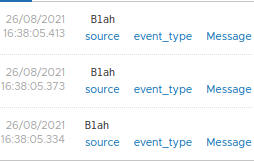
And the Blah Blah Blah text as it appears in Log Insight.

oooh, look at that. It works, albeit I’ve not bothered to code a trim in to prune the errant spaces.

Ok, well that’s an horrific insight into my code but how would I expect this to actually be deployed? Well, actually, in keeping with modern’ish IT, a container. So lets stick all this into a container and run it via Docker.

Building a Docker container

I could just hatchet the VMware Docker image, but it’s 3 years old and running Photon 1. I want to use the latest Photon (Photon 4), so lets build an fresh docker image.

In my collection of VMs I already had a Photon 4 OS lying around (you mean you don’t??) so I grabbed it and turned Docker on and set it to start automatically (it’s off by default):

systemctl start docker
systemctl enable docker
docker info
Running 'docker info' provided some information about the docker install in the VM.

To create a docker image you need to build up the various layers, starting with the basic image. In my docker file I added the following lines:

FROM photon
RUN yum -y update
RUN tdnf install python3 python3-pip -y
RUN python3 -m pip install Flask requests markdown
RUN mkdir vrli_webshim
COPY vrli_webshim /vrli_webshim
COPY vrli_webshim/webshims /vrli_webshim/webshims

I’m basically grabbing the latest Photon image and updating it. Then I install Python and PIP, using the newly installed PIP to install some Python modules and then make the folder structure I need. The two copy commands copy my code into the docker image file. I had to specifically copy the child folder structure.

Once that file was completed and I had my code placed into the same folder it was time to build the Docker image:

docker build -t  vrli-webshim:0.1 .

Then I ran the image:

docker run --network host -it vrli-webshim:0.1

I used –-network host because this is on a nested VM and this was the quickest way to get access to the web front end. Because I ran this as an interactive session ( -it ) I can manually run the webshim:

python3 /vrli_webshim/runserver.py 5001
It works and it shows that a request hit the intro webpage.

It’s alive!!

And if I trigger the test function:
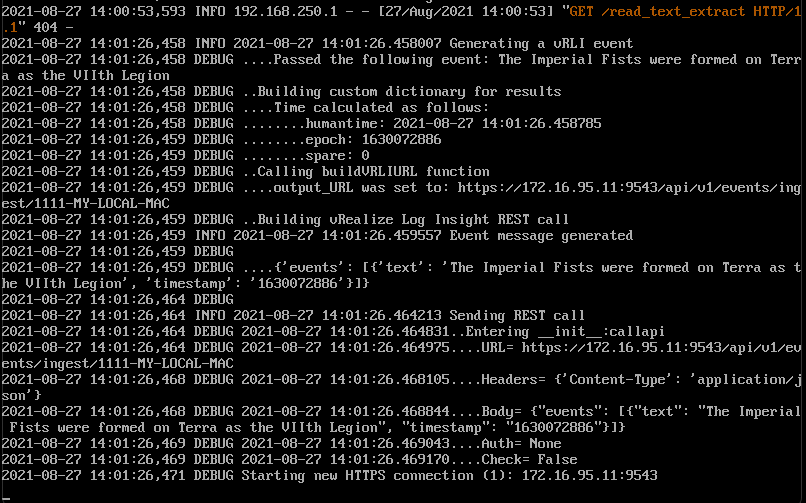
The test function is triggered and the text is reformatted and sent on to Log Insight.

Good golly gosh. and bonus Games Workshop lore as well. You lucky people. Time for a coffee.

…one minute week later…

That was a long coffee. Where was I? Oh yes. Lets get the docker container starting automatically upon the server boot.

To do this we need to amend the DockerFile to run the following command. This is added to the very end of the DockerFile.

CMD ["python3", "/vrli_webshim/runserver.py", "5001"]

The CMD call takes an array of parameters consisting of the primary call, followed by a number of arguments. Rebuilding the image (as a new interation) and testing shows that the container now automatically starts the Flask server.

docker build -t  vrli-webshim:0.2 .
docker run --network host -it vrli-webshim:0.2
The container now automatically runs the Flask webserver upon startup.

Time to configure the Photon machine to start this new container on reboot and then we have a self-contained image. This appears to be a fairly straightforward additional argument on the docker start upline:

docker run --restart always --network host -it vrli-webshim:0.2

A few test reboots and it appears that the webshim is starting automatically.

Testing the container, reboot 1
Testing the container, reboot 5

Time to export this new image:

docker save vrli-webshim:0.2 > vrli-webshim.tar

And via the magic of SFTP I’ve copied it to a new Linux machine, based on Mint.

A fairly Minty fresh VM.

Lets import that image see if this works.

docker load < vrli-webshim.tar
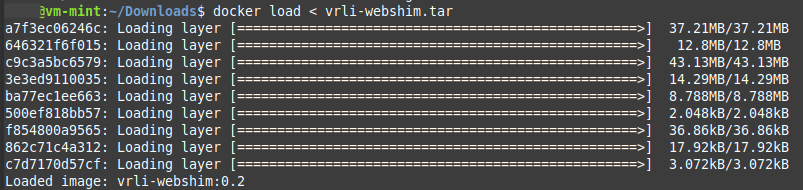
Docker image loaded up successfully.

And does it run?

docker run --network host -it vrli-webshim:0.2
It's running on the new Linux box.

Yes it does. To make it run upon startup I would need to add the –restart argument as obviously this is a docker instance specific argument.

And does the test function work…
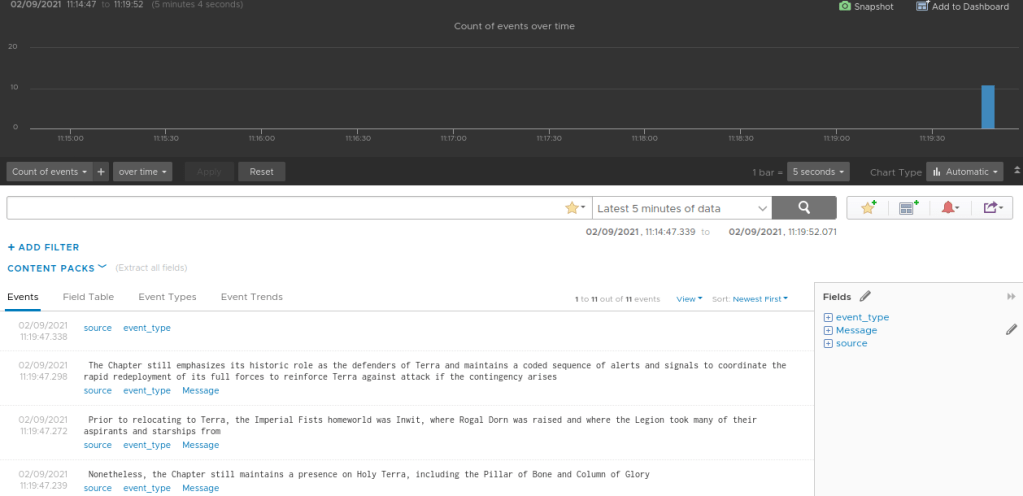
A working portable web-shim to import messages into Log Insight.

Excellent. To recap, I’ve built a portable containerised webshim, using a new Photon4 base image that will take an array of strings and send that array as messages to Log Insight. The other side would be an additional webshim that captures the random text and does some formatting based upon the exact nature of the incoming data stream.

Might be time for a biscuit.

Allocation Model in vROps 7.5+

History Recap: In vRealize Operations 6.7 the capacity engine was re-engineered and the Allocation modelling capability was removed before being re-added in vRealize Operations 7.5. There’s no Allocation in vRops 6.7 to 7.0. You also need to enable Allocation in the policies in vROps 7.5, it’s not turned on out of the box (OOTB).

There are two primary classifications of reviewing capacity within vRealize Operations:

Demand – Capacity based upon the actual requested resource consumption (i.e. demand). Demand-based modelling is typically used by Managed Service Providers (MSP) as it represents the actual usage of the environment which has been licensed to other users. The more accurate the model. the more resources can be sold and the more money is made (let’s be honest it’s about the money!).

Allocation – The total consumption of a resource if it theoretically was used at 100% all the time. This is an older model that can be much simpler as it’s essentially just a subtraction from the total capacity. I typically find allocation in larger organisations where the IT infrastructure supports various different business organisations and cross-charging (or chargeback) is performed to help offset the IT costs. It’s also much easier to plan with as simply when it gets up to roughly ~75% allocated, you buy more hardware.

I’m going to talk about the Allocation model. As I see it, the allocation model has two primary use-cases, each with its own distinct event horizon (this is my terminology):

Short event horizon: I’m deploying new objects (VMs / Containers / whatever) right now or in the next few days. I need to know what the available capacity is right now. Therefore my usable capacity must exclude all resource providers (hosts, storage etc) that are not contributing (aka offline, in maintenance mode etc) to the capacity.

Long event horizon: I’m deploying new objects in a year. This is important when it takes a long time to purchase and prepare new hardware. Therefore my usable capacity should take the assumption that all of the resource providers are online and available. There’s probably no reason (I have one or two TBH, but that’s not the point here) for a resource provider to be offline / in maintenance mode for an extended period of time.

The Allocation model in vROps 6.6.1 was based upon the long event horizon. Hosts that where in maintenance mode were included in the usable capacity metrics.

The Allocation model in in vROps 7.5+ is based upon the short event horizon. Hosts that are in maintenance mode are not included in usable capacity.

vROps 8.1 Allocation Usable Capacity

Is this a problem?

It depends on the exact methodology used when trying to do long term planning. In large environments it’s a constant job to lifecycle manage the underlying infrastructure. There are almost always hosts in maintenance mode for patching and the inevitable hosts that are just going pop (at night, it’s always at night!).

It’s also worth remembering that the capacity planners (long-term) are not the same people that are often doing the deployments (short-term). There’s a whole raft of reasons the capacity planners might not even have access to vROps (operational, cultural, procedural), so the long term capacity planning might actually be done via data extract and not the UI. So that lovely ‘What-if’ functionality isn’t used (DevOps and SREs are typically code driven).

What does this affect?

This behaviour is seen in the following two metrics:

  • CPU|Allocation|Usable Capacity after HA and Buffer
  • Memory|Allocation|Usable Capacity after HA and Buffer

As far as I’m aware Disk Space|Allocation”Usable Capacity after HA and Buffer doesn’t have this behaviour (as you’d expected TBH).

I have this problem, what can I do about it?

In the most basic long term allocation modelling it’s fairly straight-forward to model using supermetrics.

For example, let’s talk about CPU.

The allocation model, at the cluster level, models CPU capacity as vCPU. That is the total number of vCPU that can be deployed.

The standard OOTB metric for this is ‘CPU|Allocation|Usable Capacity after HA and Buffer‘ and it will show a usable capacity and this metric will vary depending on if hosts are in maintenance mode <See image above>.

Lets build a basic replacement that doesn’t care if hosts are in maintenance mode.

This calculation can be something fairly simple as:

((CPU|Number of physical CPUs (Cores) * ratio) * Cluster Configuration|DAS Configuration|Admission Control Policy|CPU Failover Resource Percent)) – (((CPU|Number of physical CPUs (Cores) * ratio) * Cluster Configuration|DAS Configuration|Admission Control Policy|CPU Failover Resource Percent)* buffer)) = Cluster Usable Capacity vCPU

Let’s use some numbers to see how this works. I’ve assumed the following (OOTB represents the vROps OOTB metric name if you need it):

  • Number of hosts in a cluster = 12
    • (OOTB: Summary|Total Number of Hosts)
  • Number of cores per host = 20
  • Number of physical CPUs in a cluster (or cores * hosts) = 240
    • (OOTB: CPU|Number of physical CPUs (Cores)) – this is variable though as it excludes hosts in MM.
  • Desired Ratio = 4:1
  • HA FTT = 1 Host
    • (OOTB: Cluster Configuration|DAS Configuration|Admission Control Policy|CPU Failover Resource Percent)
  • vROps additional Buffer = 5%

To the math:

(Total Hosts * Cores per host) = 240 physical cores (or OOTB: CPU|Number of physical CPUs (Cores))

240 * Ratio (4:1) = 960 vCPUs Total Capacity

(This could be a cool SM if you wanted to know the total number of vCPUs for a cluster, which vROps currently doesn’t tell you).

960 vCPU TC – OOTB: Cluster Configuration|DAS Configuration|Admission Control Policy|CPU Failover Resource Percent (8%) = 960 * 0.92 = 883.2 vCPU

883.2 * vROps buffer (5%) = 883.2 * 0.95 = 839.04 vCPU

Wrap the whole metric in the floor() function to get 839 vCPU as your usable HA content that will not change if hosts are in maintenance mode.

You can do something similar for Memory|Allocation|Usable Capacity after HA and Buffer as well, and that should be simpler.

NOTE: I’ve simplified the calculations above from the eventual supermetric customer delivered supermetric, and due to the hosting platform I currently can’t get formula’s to look nice so a few brackets might be misplaced.

How complicated can the supermetrics get?

Very very complicated depending on your particular requirements. Go beyond the very basics and it can include vROps SM if statements, which statements, arrays. Quite advanced supermetric stuff and if you really want to go to town, calculations scripted outside of vROps and then inserted into vROps.

If you’re really struggling I would recommend engaging with VMware about getting Professional Services involved.

Use Policies to migrate content between vROps instances

It’s been a minute since I last posted. So today I thought I’d just briefly outline how it’s possible to migrate some content between vRealize Operations deployments.

The content management cycle for vROps can leave a little to be desired. With policies, alerts, views, symptoms, recommendations metric configuration, supermetrics, reports and dashboards, there’s little inbuilt capability to quickly extract relevant objects and import to another vROps instance.

But you can use a policy to quickly migrate policy settings, supermetrics, alert definitions, symptoms and recommendations.

Here’s the basic process:

  • Build a new template
  • Enable locally in the policy all the supermetrics required
  • Enable locally in the policy all the alerts required
  • Export the policy as an .xml
  • Import the policy into the new vROps

That’s ok, but that’s for one policy. What about multiple policies?

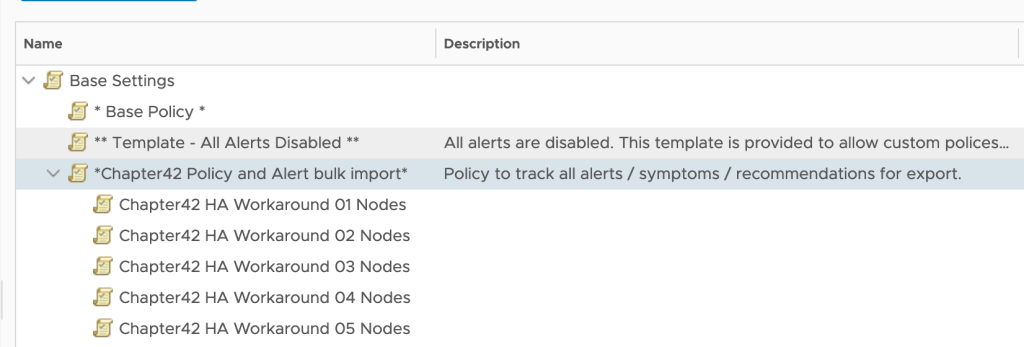
Export them as before. Then open up the .xml and copy the <policy> branch to the import template file, adding the extra text ‘parentPolicy=”<ID of the master policy>”.

Nested vRealize Operations Export

In the image above I’ve exported five additional policies, and then added them to my import .xml file. Of key importance is how I’ve added the line parentPolicy=”eac91bc-4be7-487d-b1da-63dc6f5e25e8″ which matches the key of the top-level policy.

When this .xml is imported all the children are also imported.

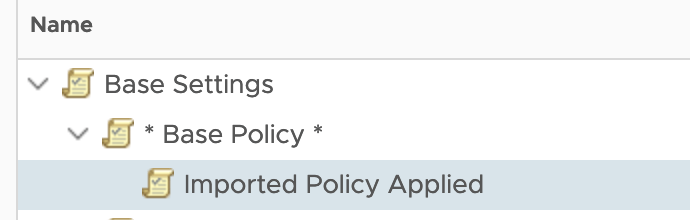
Policy imported to new vROps

Then it’s possible to to just pick the new policy and apply the appropriate imported policy.

Build the new policy, ensuring that the policy will use the appropriate base policy.

Building a new local policy

Override the settings with the settings from the appropriate imported policy

Overriding the settings with the imported values

And voila, quickly and easily migrate policies, alerts and supermetrics between vROps instances.

A migrated policy ready to be used

vROps HA / CA clusters

Have you recently cast your beautiful eyes over the sizing guides for vRealize Operations 8.X? Of course you have; it’s mandatory reading. A real tribute to the works of H.G. Wells & H. P. Lovecraft.

Recently I was reviewing a vROps 8 design and the author had added a section on Continuous Availability (CA). The bit that caught my eye was a comparison table between CA and HA. Mostly specifically the maximum number of nodes. Something didn’t add up. Lets take a closer look:

vRealize Operations 8.0.1 HA Cluster Sizing
Figure 1. vRealize Operations HA Cluster Sizing
vRealize Operations 8.0.1 CA cluster sizing table.
Figure 2. vRealize Operations CA Cluster Sizing

Lets review the design guidance for a CA cluster:

Continuous Availability (CA) allows the cluster nodes to be stretched across two fault domains, with the ability to experience up to one fault domain failure and to recover without causing cluster downtime.  CA requires an equal number of nodes in each fault domain and a witness node, in a third site, to monitor split brain scenarios. 

Every CA fault domain must be balanced, therefore every CA cluster must have at least 2 fault domains.

So far that’s all fairly easy to follow but the numbers don’t align. An extra-large vROps HA cluster has a maximum number of nodes of 6 (the final column in Figure 1). The maximum number of nodes in a single fault domain is 4 (the final column in Figure 2). The minimum number of fault domains in a CA cluster is 2, therefore the total number of nodes in a CA cluster is 8.

Surely this is a mistake?

I asked the Borg collective for assimilation. They said no but did tell me, and I paraphrase:

The maximum number of nodes for vROps 8.X are different depending on if you are using HA or CA although the overall objects / metrics maximums are unchanged.

So, in conclusion, there is no increase in the objects or metrics that a CA cluster can support compared to a HA cluster. So the total supported* capacity remains the same, you can just have more nodes to support the CA fault domain capability.

*Obviously you can go bigger, but VMware support can tell you off.

*EDIT*

I’ve edited this post since it was originally posted to add some additional context and tidy up some of the language.