So it seems this has been sat unpublished for a while. My bad… I’m really just faking this whole tech thing!
Recently (well not see above) I was asked to help generate some certificates for vROps. The customer was having some problems and just wanted an easy step by step example.
This is all done in my lab, so the basic setup is:
- 1 * AD server with a Certificate Authority installed, with a custom template built for generating VMware compatible certificates.
- 1 * vROps Analytical Node
- 1 * vROps Remote Collector
So, onwards my dear fellow:
Download the root CA certificate
 Click on Download a CA certificate
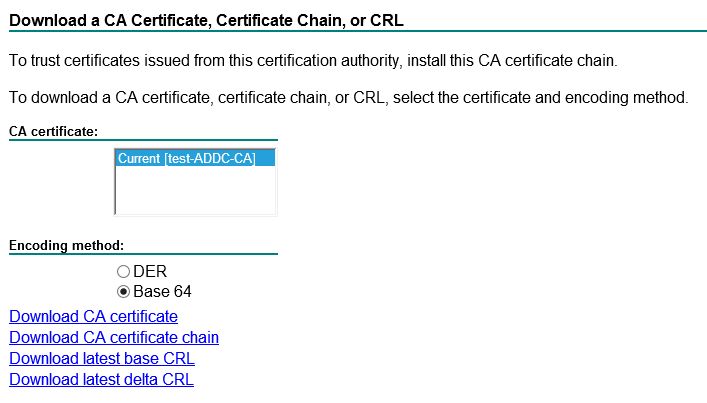
Select Base 64 and then Download CA certificate
I called it ‘ca.cer’
Once downloaded I opened it in Notepad++ just to see what it downloaded:

Lovely.
Then I opened an SSH session to the vROps master node.
I use the master node and the local openssl to avoid any problems. You can use an external openssl if you want.
Checked the openssl directory ‘openssl version -d’

And the version itself ‘openssl version’

Made a folder to store my certs in mkdir /tmp/cert

Created a vrops.cfg file to store my certificate CSR details in

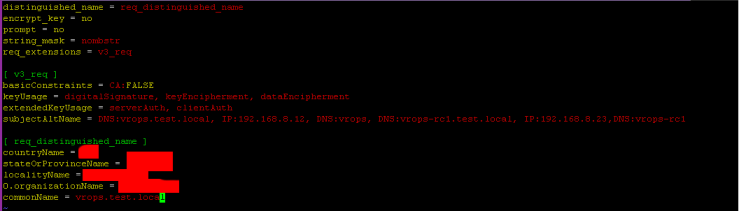
distinguished_name = req_distinguished_name
encrypt_key = no
prompt = no
string_mask = nombstr
req_extensions = v3_req
[ v3_req ]
basicConstraints = CA:FALSE
keyUsage = digitalSignature, keyEncipherment, dataEncipherment
extendedKeyUsage = serverAuth, clientAuth
subjectAltName = DNS:vrops.test.local, IP:192.168.8.12, DNS:vrops, DNS:vrops-rc1.test.local, IP:192.168.8.23,DNS:vrops-rc1
[ req_distinguished_name ]
countryName = XX
stateOrProvinceName = XXXXXX
localityName = XXXXXX
0.organizationName = XXXXX
commonName = vrops.test.local
If your using a Load Balancer, then the commonName should be the name of the load-balancer. The SAN should also have the load-balancer details.
Once this is written it’s time to generate the private key:
And the good stuff:
Now generate the actual CSR:
And the output file ‘vrops.csr’ looks like:
Take the CSR and switch over to the CA server.

Click on Request a certificate:
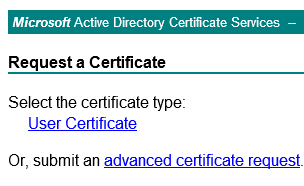
Select ‘advanced certificate request’

Select ‘submit a certficate request by using….’

Copy the text from the .CSR file, including the header and tail and paste it into the box:

Pressed Submit

Select Base 64 encoded and then download the the certificate. I called mine ‘vrops.cer’. Opening it in Notepad it looks like this:

So, I have:

Upload these to the vROps Analytical node. I upload them to the same node I used to generate the .csr as it already has the .key file. I use WinScp and place the new files into the same folder.


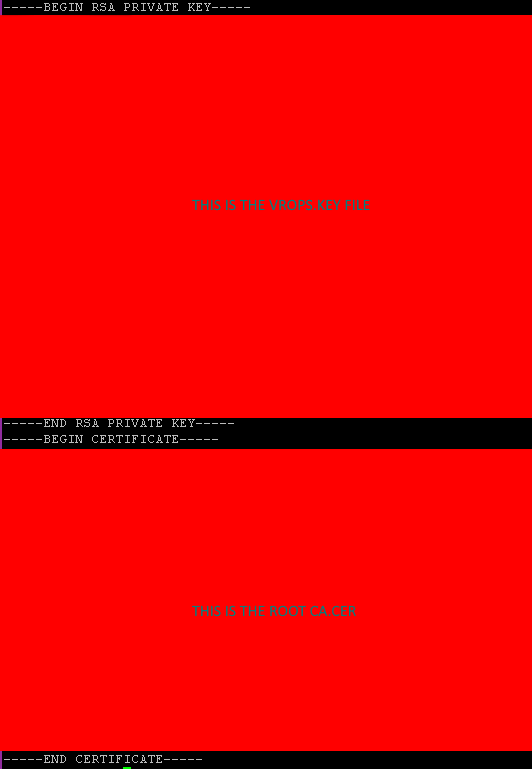
Time to make the PEM file. The order is:
| vrops.cer | This was just generated from the Root CA above |
| vrops.key | This was generated earlier and is the private key |
| Chain.cer | This is where any intermediatery CA is placed. There isn’t one in my lab, so it’s not present |
| ca.cer | This is the final ROOT CA certificate |
Chain them together into a single file called the vrops.pem

Taking a look at the PEM file (this is a single file, but the screenshot is split into two):

And with this we should have a working, valid vROps certificate.
I can check this by switching to a Windows machine and opening MMC / Certificates and importing the certificate into my personal store. This will allow me to browse the certificate to check the info.
Switch to vROps admin page log in and in the top right there will be a certificate icon:

This will load a window showing the current certificate, click on Install New Certificate:

Click on Browse and select the PEM file. vROps will check the PEM file to ensure it’s valid:

Click on Install and after a few minutes this occurs:
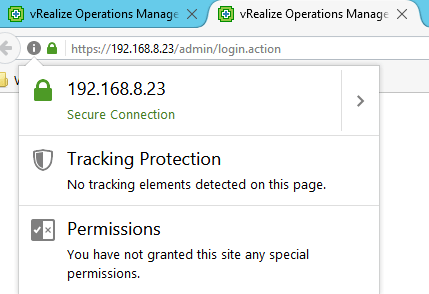
The Master Node
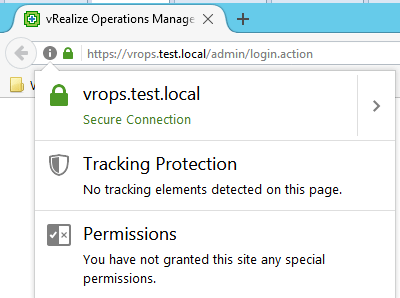
The Remote Collector via IP
But what if the PEM file isn’t accurate:
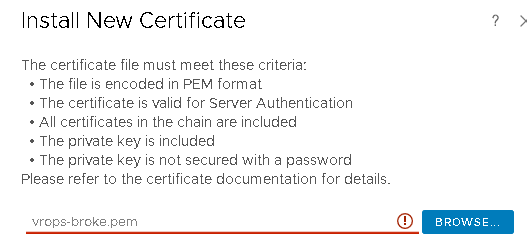
It gives the red-exclamation mark and won’t let you proceed
If you check the admin-ui.log file you might get a hint as to what’s wrong:

This shows that it was CASA that through the error, which makes sense, so checking the casa.log file:

So in this example my private key doesn’t work with the generated .csr output. Which is correct as I swapped my valid .csr output out with one that was configured for a load-balancer, so it wasn’t valid.
Other scenarios I’ve come across is ‘incomplete chain’. This usually means that the root CA and the intermediate CA’s are in the wrong order or, if you’ve got a complicated environment, simply the wrong .cer files.
 Chapter 42